🍎 Mac mini M4 SSD Restore Guide | Easy Step-by-Step ✨
Got your new SSD but have no idea how to restore it? No stress — this is the beginner-friendly, no-guesswork version 🙌
Last updated: July 26, 2026
🎯 Before You Start
1️⃣ What You’ll Need 💻
- ✅ A normal Mac running macOS 15.7 or later
- ✅ Keep the host Mac plugged in and connected to stable internet
- ✅ Leave at least 32 GB of free storage
- ✅ Use a USB-C to USB-C cable that supports both data and charging
- ❌ Skip docks and USB hubs, and do not use a Thunderbolt 3 cable
Our first choice: Apple Configurator
❌ There’s no Windows version, so a Windows PC can’t run this workflow.
💡 This guide — and our support process — uses Apple Configurator first. macOS 14 can still revive or restore a Mac through Finder, and an older compatible Apple Configurator may also work.
⚠️ A Hackintosh is an unofficial setup. USB, drivers, and recovery components can be unpredictable, so it’s not our recommended host.
📍 No suitable Mac nearby? Ask the repair shop one very specific question: “Do you support Mac DFU firmware restore?” Being able to restore an iPad doesn’t automatically mean they can handle this.
2️⃣ Plug Into the Right Port 🔌
Connect the cable to the middle Thunderbolt port on the Mac mini being restored.
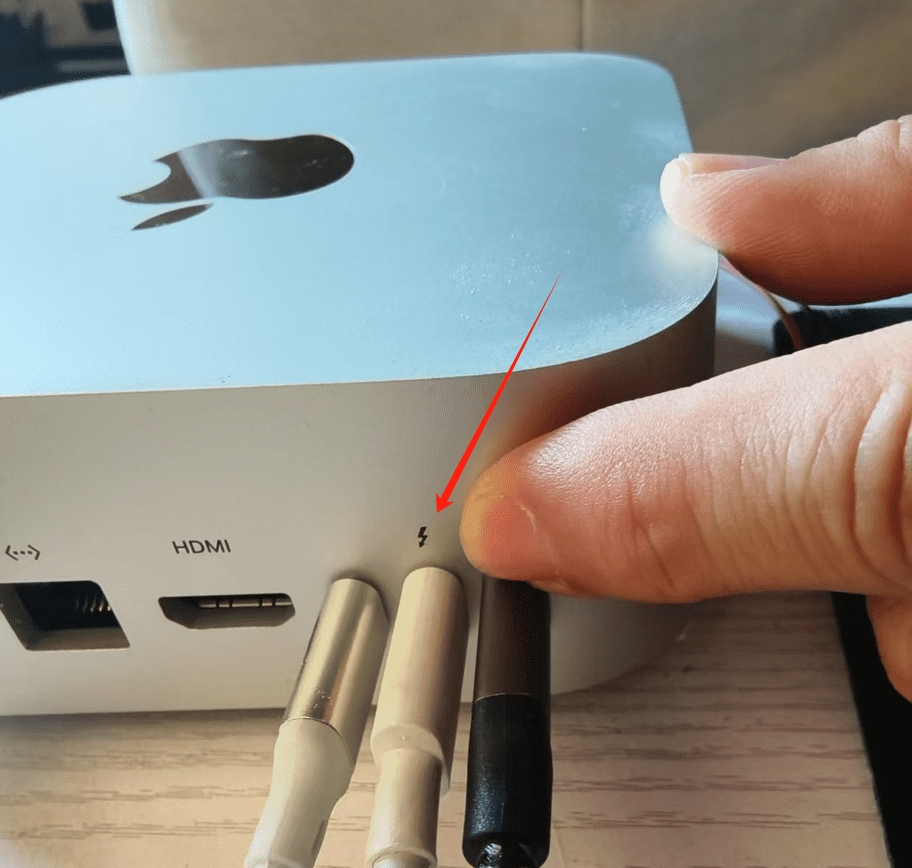
💡 Tiny detail, huge difference — the wrong port is one of the most common reasons the Mac never appears in DFU.
3️⃣ Download the Correct IPSW ⬇️
Big warning‼️ Don’t use an online update push. It can grab a package for the wrong Mac model, and then you’ll spend ages troubleshooting the wrong thing 😭
Use the latest stable package for Mac mini M4 (Mac16,10): macOS 26.5.2 (25F84).
🔗 Mac mini M4 macOS 26.5.2 — Official Apple Download
4️⃣ Install Apple Configurator 📲
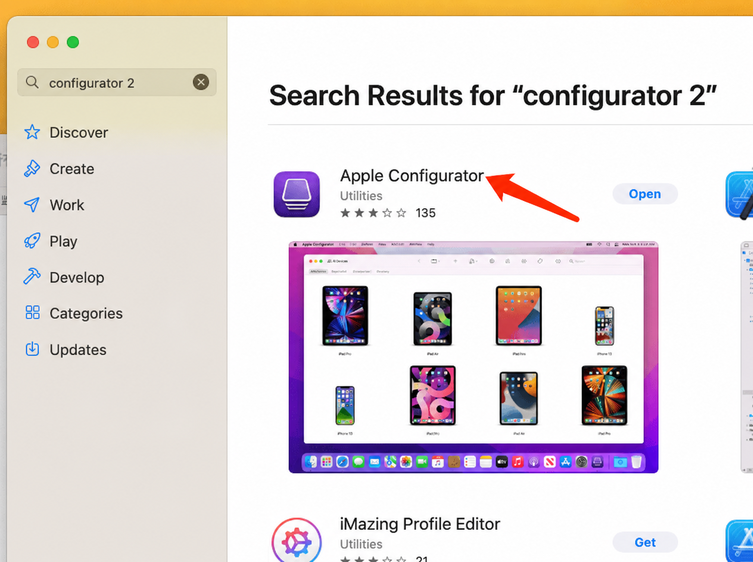
Open the Mac App Store, search for Apple Configurator, and install it.
5️⃣ Enter DFU Mode 🔴
Follow this order exactly:
- Press and hold the power button
- Connect power while you’re still holding it
- Release the button when the status light flashes red
- ✅ The device should now appear in DFU mode
⚠️ The order really matters! If the Mac is already connected to power and you only hold the button afterward, the restore won’t start correctly.
6️⃣ Start the Restore 🚀
In Apple Configurator, drag the downloaded IPSW file straight onto the DFU device area.
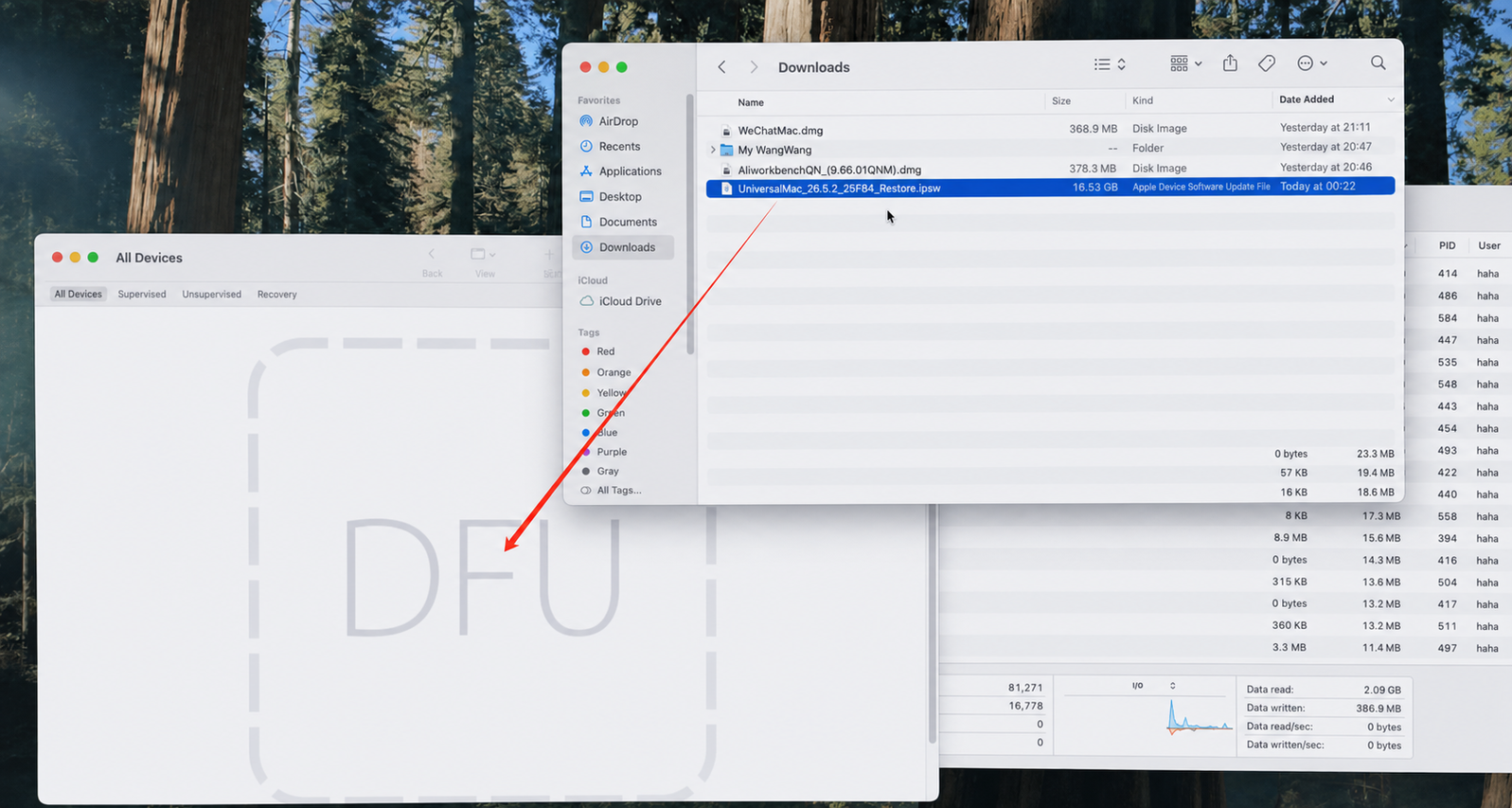
Now let it do its thing — don’t unplug the power or USB-C cable. Time to grab a coffee ☕️
📊 Want to Check the Progress?
Open Activity Monitor to see what Apple Configurator is doing:
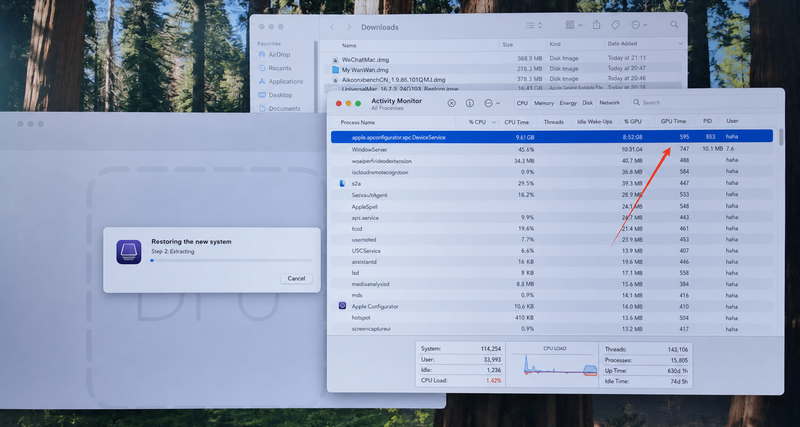
- ✅ Data read is over 17.5 GB → formatting is done and writing has started
- ⏳ You’re usually in the home stretch now, so keep waiting
- ❌ Error before 17.5 GB → take a full screenshot and send it to support
❌ Quick Fixes for Common Errors
🔴 Error 4041 / 4042 / 4011
Start with the simple stuff: check the cable, use the correct DFU port, and make sure the connection is stable. Then restart the host Mac before trying again ✅
🔴 “Gave up waiting for device”
The cable is usually in the wrong DFU port, or the Mac mini didn’t enter DFU properly. Jump back to Step 2 and try the sequence again 🔌
🔴 “Failed to create temp directory”
The IPSW may be incomplete, or the host Mac may be short on free space. Delete the old download, make sure you have at least 32 GB free, and download the full package again ⬇️
Need a different code? Try the full restore error helper — all 29 entries are searchable 🔍
⚠️ Super Important After a Failed Attempt‼️
If the first restore fails, restart the host Mac running Apple Configurator before every new attempt. Then re-enter DFU mode and start fresh.
Skipping that restart can leave the previous restore state hanging around — and your next attempt may fail for no obvious reason.
💬 Still Stuck?
No worries — save these before contacting support:
- 📸 A full screenshot of the error
- 💻 The target Mac model and IPSW filename
- ⚙️ Your macOS and Apple Configurator versions
- 🔌 The cables, ports, and steps you’ve already tried
That gives us the clues we need to troubleshoot much faster ✨
Last updated: July 26, 2026
Reading time: about 5 minutes
Tags: #MacMiniM4 #AppleConfigurator #DFURestore #SSDFirmware #MacTips